


Tracer! Lightbox tracing app
4.1613.00 Reviews
App Specs
- Version
- Varies with Device
- Updated On
- License
- Free
- Downloads
- 500,000+
- Developer
- Angel Koh
- Categories
- Art & Design
- Platform
- Android
Screenshots
 Analysis by AppCompare
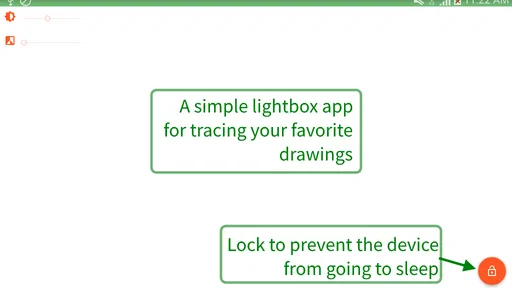
I usually think of tracing as a temporary bridge: useful when I want to transfer a shape accurately, but not something I want to build my entire drawing process around. Tracer! takes that simple idea and turns it into a focused Android art tool. It works as a lightbox and tracing utility, while also giving me a built-in way to search for reference material. After spending time with it, I see the appeal clearly: it is quick to understand, free to use, and aimed at the moment when I need an image underneath my paper or drawing surface rather than a full digital studio.
That narrow purpose is also the key to judging it fairly. This is not trying to replace a layered illustration app, a photo editor, or a professional drawing workspace. It is made by Angel Koh and sits in the Art & Design category, with a Everyone age rating. The app has been available since August 22, 2016, and its long presence helps explain why it feels more like a practical utility than a trend-driven creative platform. I would recommend it to beginners, hobby artists, students, and anyone who occasionally needs a clean tracing setup without paying for specialized equipment.
How Tracer! feels in everyday use
The first thing I noticed is how quickly the app gets to its central job. Instead of presenting a crowded collection of brushes, effects, layers, and export controls, it puts the idea of an image beneath your work at the center. That makes the learning curve gentle. If you already understand what a lightbox does, the concept is immediately familiar; if you do not, the app is still approachable because the workflow is visual rather than technical.
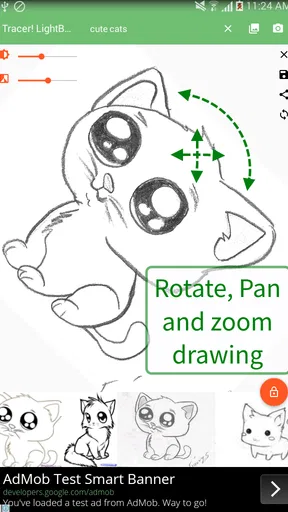
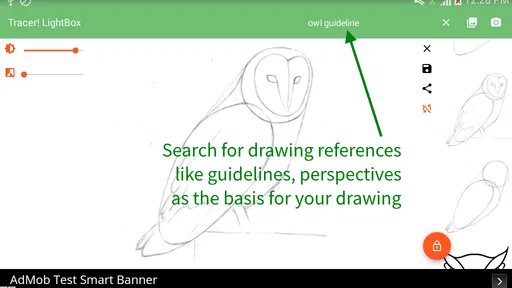
A realistic use case is copying a simple reference onto paper before refining it with pencil or ink. I might search for a flower, animal pose, lettering shape, or basic object, place the phone beneath a sheet, and use the visible image as a guide. For a child, the same process can make drawing less intimidating. For a craft project, it can help transfer a motif to a suitable surface. The value is not that it magically creates a finished illustration; the value is that it removes the frustrating first step of estimating proportions from memory.
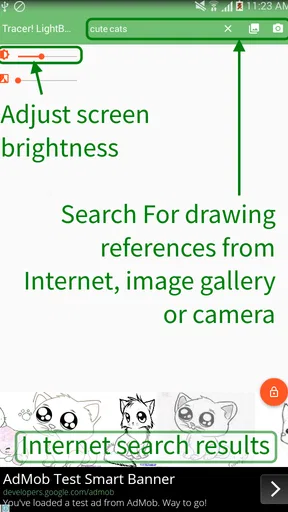
The built-in search is particularly useful when I do not already have a reference saved on the device. It keeps the transition from “I need an example” to “I can start drawing” relatively short. That said, I treat search as a starting point rather than a guarantee of perfect source material. A reference found quickly may have an awkward crop, distracting details, or a perspective that is harder to trace than expected. I get better results when I search with a specific visual goal and choose images with clear silhouettes.
One practical habit makes a noticeable difference: I prepare the reference before placing paper over the screen. I crop mentally by choosing a simple subject, reduce visual clutter where possible, and check that the important outline is visible. Tracing a complicated photograph at full detail is usually less satisfying than selecting one strong contour. The app is at its best when I use it to understand shape and placement, not when I expect it to convert every detail into an effortless drawing.
A useful tool for physical drawing, not digital painting
Tracer! makes the most sense when the final work will exist outside the app. That distinction matters. Many art applications are designed around drawing directly on a touchscreen, with brushes, undo history, layers, color controls, and file management. This one supports a different workflow: the phone or tablet acts as an illuminated reference surface, while the actual mark-making happens on paper or another material.
Worth Reading Before You Choose

EA SPORTS FC Mobile 26 Is a Bigger Football Game, but It Takes Time

Flipboard Shows What News Apps Must Do Beyond the Feed

Switching to Android Auto Means Rethinking Your Driving Routine

Google Calendar Makes a Crowded Week Easier to Manage

Ludo King Makes the Most of the Minutes Between Plans

Baby Panda World Brings Quick Play to Modern Phones, but Its Game Library Feels Busy
For someone who enjoys graphite, colored pencil, marker, or hand lettering, that can be more comfortable than drawing with a finger or a small stylus. I can concentrate on pressure, texture, and the feel of the physical medium. The app handles the visual guide, while the paper preserves the character that digital tools often smooth away.
There is a trade-off, however. Because the screen is part of the setup, the device needs to remain in a stable position. A loose phone, a sheet that shifts, or a reference placed at an awkward angle can make careful tracing irritating. I prefer a flat surface and a light sheet that allows the image to remain visible without forcing me to press hard. This is not a defect unique to the software, but it is an important part of the real experience.
I also would not use it as my main tool for finished digital illustrations. If I want editable layers, precise selections, advanced color work, or a reliable export workflow, a dedicated drawing application is the better choice. Tracer! earns its place by being simpler, not by competing feature for feature with those larger programs.
What its history tells me about the product
The app’s release in 2016 places it in an earlier generation of mobile utilities, before many creative apps became broad all-in-one platforms. Its identity remains refreshingly direct: a lightbox and tracing aid with search included. I see that as a strength for occasional users because there is less to learn and less temptation to spend time configuring a workspace instead of drawing.
At the same time, an older, focused design can feel limited beside newer art applications. Modern users may expect extensive customization, seamless project organization, and tools that cover the entire journey from reference to final artwork. Tracer! does not need all of those things to be useful, but anyone comparing it with a current digital studio should understand that they are solving different problems.
Its current public reception suggests that the concept continues to find an audience. It holds an average rating of 4.1 from around 3.2 thousand ratings, and the app has passed half a million installs. I read those figures as evidence of practical usefulness rather than proof that it suits everyone. A utility can satisfy many people precisely because it handles one job clearly, while still disappointing users who expect a broader creative suite.
Small workflow decisions that improve the result
The best way to use the app is to think like a draftsman rather than a photographer. I choose references with a readable outline, avoid starting with a busy image, and decide whether I need the whole subject or only one part. When I am practicing, I may trace a simplified contour first, then look away from the screen and add details from observation. That turns the app into a learning aid instead of a crutch.
Another useful approach is to trace in stages. I begin with the largest shapes, pause to check whether the proportions feel right, and only then work on smaller features. This prevents a common mistake: carefully copying an eye, wheel, or petal before realizing that the overall placement is wrong. The app can show me where the reference is, but it cannot judge whether the final drawing has the visual weight I want.
For lettering, I find the search function more helpful when I look for broad styles or individual forms rather than a complete finished design. A reference can guide spacing and structure, but copying every decorative detail may produce a result that feels stiff. I prefer using the image as a scaffold, then changing the line quality by hand. That is one of the clearest ways to keep the physical artwork personal.
There is also a sensible privacy and practicality habit: I avoid treating the search area as my permanent reference library. If I know I will reuse an image for a project, I organize it separately on the device and return to the app when I need tracing. This keeps the drawing session focused and avoids depending on a particular search result every time. The app is convenient for discovery, but my own reference organization remains more dependable for repeated work.
Where the simpler design becomes a limitation
The biggest limitation is scope. Tracer! can help me position and follow an image, but it does not replace the decisions that make an illustration convincing. It will not correct a shaky line, choose a better composition, or explain why a drawing looks flat. Beginners may enjoy the immediate confidence boost, but they still need freehand practice if they want to draw without a reference underneath.
I also think users should be realistic about screen size. A phone can be convenient for a small sketch, but it gives less room than a tablet or a physical lightbox. The smaller the working area, the more often I need to reposition my hand or the paper. That can interrupt a long session. For quick motifs, icons, and practice shapes, the compromise is acceptable. For large, detailed artwork, a larger display or a dedicated lightbox is more comfortable.
Brightness and visibility are practical concerns too. A lightbox-style workflow depends on seeing the reference clearly through the material, so the result depends on the device, the paper, and the surrounding light. I get a smoother experience when the room lighting does not compete with the screen and when the paper is thin enough for the outline to remain legible. These conditions are worth considering before judging the app after a difficult first attempt.
The built-in search is convenient, but it also creates a quality-control responsibility. Not every image is equally suitable for tracing, and a visually attractive reference may have complex shadows or indistinct edges. I recommend choosing images based on structure, not merely appearance. A plain side view can teach more about proportion than a dramatic photograph with heavy lighting.
Who should install it, and who should choose something else
I think Tracer! is a good fit for a person who wants a free, straightforward way to transfer shapes onto paper. It is especially suitable for beginners who feel blocked by blank pages, parents looking for an accessible drawing activity, students practicing outlines, and hobbyists working on cards, decorations, or simple craft patterns. The Everyone rating also makes it easy to consider for general household use, although an adult should still guide younger children around the physical device and drawing setup.
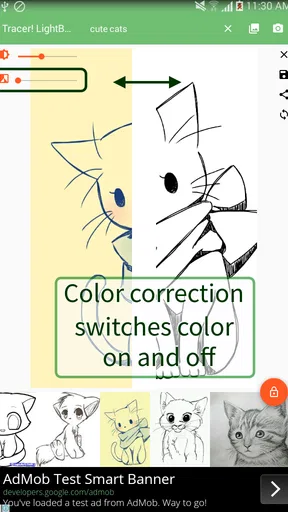
It is less suitable for an artist who wants to create a complete digital painting inside one app. If your priority is layers, brush engines, color correction, animation, vector editing, or professional file handling, I would look at a dedicated digital art tool instead. Likewise, if you already own a physical lightbox and mainly need a large, evenly illuminated surface, a phone-based solution may feel cramped rather than convenient.
I would also suggest skipping it if your goal is to improve observational drawing without relying on outlines. Tracing can teach proportion, but it can also hide weaknesses in freehand construction. I get more value by alternating between traced studies and drawings made from the same reference after the screen is removed. That way, the app helps me learn rather than simply helping me reproduce.
How it compares with common alternatives
Compared with a normal digital drawing app, Tracer! is faster to start but much narrower. A full art app gives me more control over the final image, while this one gives me a simpler path to a physical sketch. Compared with searching for an image in a browser and improvising a separate lightbox arrangement, the built-in search makes the process feel more unified. The advantage is convenience; the disadvantage is that I have fewer creative tools once the reference is selected.
Compared with a dedicated physical lightbox, the app is more portable and costs nothing to download. A physical unit may offer a larger working area and a more purpose-built surface, but it takes storage space and is less useful when I am away from home. Tracer! is therefore strongest as an accessible substitute for occasional projects, not necessarily as an upgrade for someone who already has professional equipment.
Compared with simply placing a reference beside the paper, the lightbox approach keeps the guide aligned with the drawing surface. That can make proportions easier to transfer, especially for simple outlines. But it also means the paper can cover part of the screen and the device must stay still. I see this as a workflow choice: side-by-side viewing is better for interpretation and learning, while tracing is better for accurate placement.
What existing users can expect now
For someone who has used the app for a while, its main benefit remains consistency. It does not ask me to rebuild a complicated workspace every time I want to trace a small design. I can return to the same basic idea—find a reference, position it, and draw over it—without a long setup. That reliability is valuable for short creative sessions when I have only a few minutes.
The app’s age also means I approach it with practical expectations rather than expecting constant transformation into a complete art platform. Its evolution is best understood as the continued usefulness of a compact concept: search and tracing in one place. I would welcome refinements that make positioning, reference preparation, and physical drawing more comfortable, but I would not want unnecessary complexity to obscure the reason I opened it.
New users should give themselves a short adjustment period. The first attempt may feel awkward because tracing through a screen is different from drawing on a normal desk. I recommend starting with a bold, uncomplicated outline and a small piece of paper. Once the hand position and device placement feel natural, more detailed projects become easier to judge.
What I would watch before making it a regular tool
If I were deciding whether to keep Tracer! installed, I would pay attention to how well it fits my actual drawing habits. Do I often work on paper? Do I need references quickly? Am I comfortable using a phone as the illuminated surface? If the answers are yes, its focused design is a real advantage. If most of my work is digital or large-format, I would probably get more from another category of app or from dedicated equipment.
I would also watch how the search-based workflow fits my projects over time. It is excellent for spontaneous ideas, but repeated professional work may require a more organized reference system and greater control over the image. The app can begin a project efficiently, yet the rest of the process may still belong to a different tool.
My final view is positive but specific. Tracer! is best understood as a free drawing aid, not a full illustration studio. Angel Koh’s app succeeds when I need a lightweight bridge between a visual reference and a physical sketch. It is approachable, useful for everyday creative tasks, and supported by a sizeable user base, but its simplicity brings real limits in workspace size, artistic control, and long-form project management. I would recommend trying it if tracing is an occasional need; I would choose something else if digital editing, advanced drawing tools, or large artwork are the priority.
For me, the most rewarding use is not copying an image perfectly. It is tracing the essential structure, closing the app, and then seeing how much I can redraw from understanding rather than dependence. Used that way, this modest Art & Design app becomes more than a shortcut: it becomes a practical first step toward drawing with greater confidence.
Pros
- Simple interface makes tracing accessible for beginners.
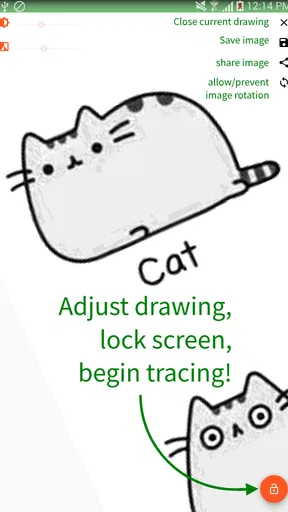
- Adjustable image opacity helps balance reference and drawing visibility.
- Supports hands-free viewing while working on paper.
- Useful for practicing proportions
- outlines
- and basic sketching.
- Lightweight design should run smoothly on most modern devices.
Cons
- Requires a stable phone position for accurate tracing.
- Limited value for artists seeking advanced drawing tools.
- Screen size can restrict larger or more detailed projects.
- Extended use may drain the battery and warm the device.
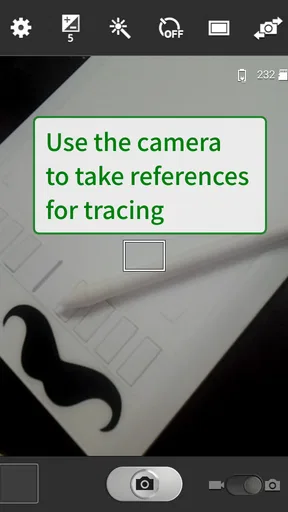
- Camera permissions may concern users who prefer stricter privacy controls.
FAQs for Tracer! Lightbox tracing app
What is Tracer! Lightbox tracing app used for?
Tracer! Lightbox is a digital tracing tool that turns your Android or iPhone screen into a lightbox. You can place a reference image beneath a sheet of paper, adjust the image’s brightness and transparency, and trace the visible outlines. It can be useful for beginners practicing drawing, artists transferring sketches, students working on illustrations, and anyone who wants a simple alternative to a physical light table.
How do you use Tracer! Lightbox to trace an image?
After opening the app, choose an image from your device or use one of the available image options, then place a sheet of thin paper over the screen. Adjust the image size, position, opacity, and brightness until the lines are comfortable to see. Lock the screen or image controls before tracing so accidental taps do not move the reference while you work.
Does Tracer! Lightbox work with any type of paper or image?
The app can display many common reference images, but tracing results depend on your device and materials. Thin, translucent paper usually works best because it allows the illuminated image to show through clearly. Thick or dark paper may hide the reference. High-contrast drawings and clean outlines are generally easier to trace than detailed photographs or very bright, low-contrast images.
Can Tracer! Lightbox damage my phone or tablet screen?
The app itself is designed to display an image and should not damage a normal device screen. However, pressing hard with a pencil, stylus, or other tool can harm the display, especially on phones and tablets that are not intended to be used as physical lightboxes. Use light pressure, avoid sharp tools, and consider applying a screen protector or using a spare device.
Is Tracer! Lightbox free, and does it require an internet connection?
Availability of free features, advertisements, and optional purchases can vary according to the app version and platform. Basic tracing normally relies on the device’s screen and locally selected images, so an internet connection may not be necessary after installation. You should still review the current store listing for pricing, advertising, permissions, and any premium tools before downloading.


